Tool task

KoKo Assistant

KoKo gives your recurring Codex prompts and Skills a floating desktop entry point. Enter the internal invite code to download the Mac Beta, then turn project start, code sync, and repeat workflows into quick KoKo buttons.

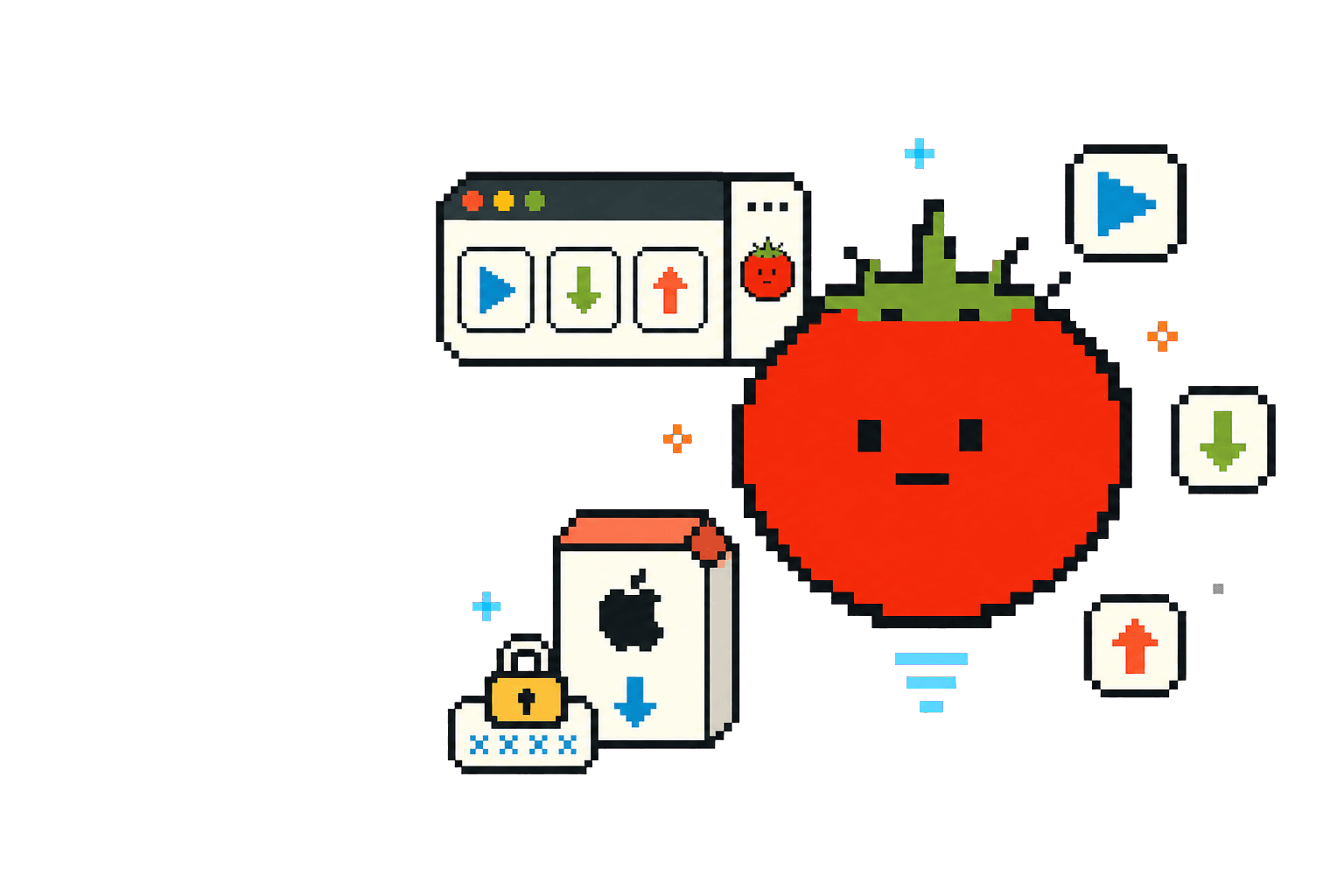
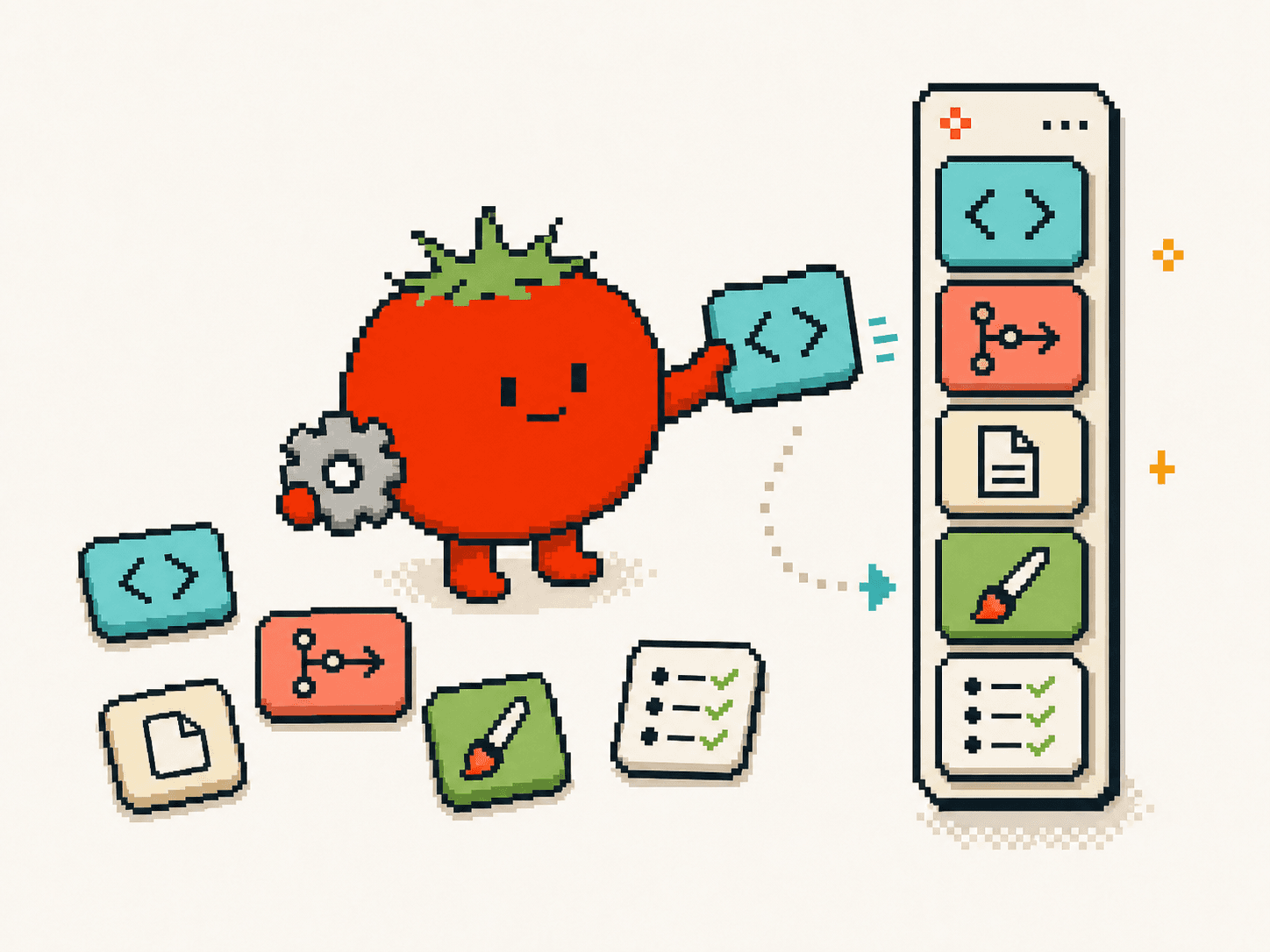
KoKo pixel tomato assistant with floating shortcut buttons and a Mac Beta installer

Download KoKo Mac Beta

This build is for internal testing. Click the Mac download button and enter the invite code. The Windows entry is reserved but not open yet.

Beta
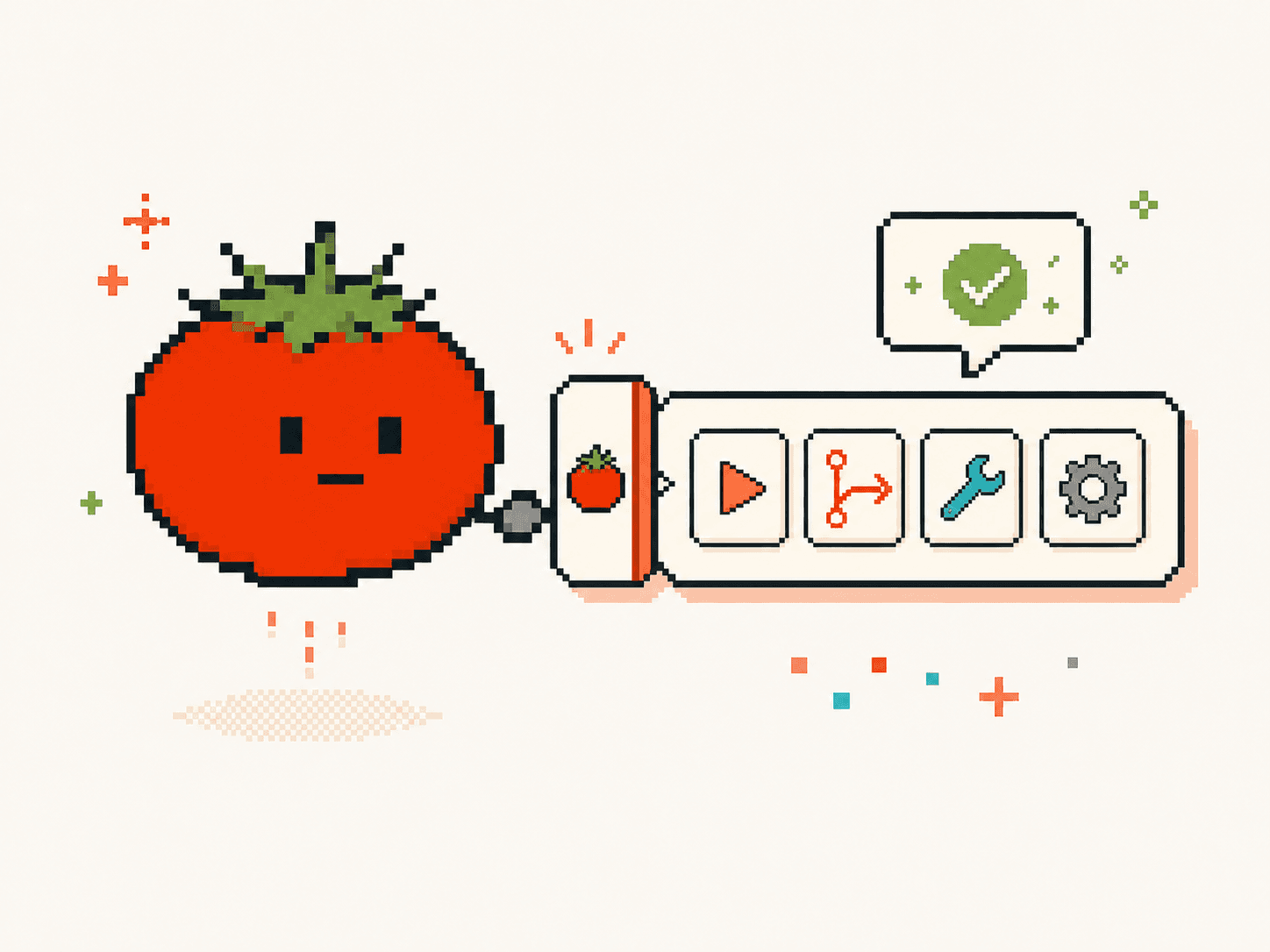
Pixel preview of KoKo opening floating shortcut buttons
Beta

Mac Beta download

This is the KoKo Codex Desktop Assistant Mac Beta. It adds a floating desktop entry point for the Codex prompts, Skills, and project parameters you reuse every day.

Hover the floating window to reveal shortcut buttons

Bind each button to a prompt, Skill, or preset parameter set

Open Codex and send the action to the right project automatically
Coming soon

Windows version

The Windows entry is reserved on the right, but it is not available yet. We will open it after the installer and launch flow are stable.

Windows version coming soon

What you get

After installation, KoKo gives you a lightweight floating desktop window. You can turn recurring actions such as starting a project, pulling code, pushing code, or launching a Skill into buttons that are available from any screen.

KoKo is not another web generator and it does not ask you to fill out a long form. Its value is saving the Codex chats, project paths, prompts, and Skills you already trust, then making them reachable with one hover and one click.

Product preview of KoKo opening multiple floating shortcut buttons

Workflows worth turning into buttons

The first Beta focuses on high-frequency Codex workflows that can be preset and then left to run. The first two scenarios are developer essentials; the other two help teams package repeatable Skill flows.

Start a code project

Store the project path, start command, and checks in one button. Hover KoKo, click Start, and let Codex enter the right project while you wait for the service to be ready.

Pull and push code

Split pull, branch checks, commit summaries, push, or draft PR prompts into shortcut buttons. It helps developers who sync code many times a day without wanting to retype the same instructions.

Launch a fixed Skill

Turn SEO, brand materials, document cleanup, email drafts, or other Skill calls into buttons. KoKo sends the preset prompt to the right Codex chat or project.

Hand off routine tasks

Teams can package review checklists, launch checks, retrospectives, or asset generation into shared configurations so teammates can trigger the same Codex flow without memorizing the prompt.

Customize the left-side hover buttons

KoKo is not a fixed feature list. Each shortcut can point to a prompt, a Skill, a project path, a target chat, or a preset parameter set, so the buttons that appear on hover match your actual workflow.

One button might start local services, another might pull the latest branch, and another might call `$programmatic-seo` for a page brief. The closer the buttons are to your daily actions, the more KoKo feels like a desktop Codex dispatcher.

KoKo arranging prompts, Skills, and checklist modules into floating buttons

Click once, send to Codex

When you click a button, KoKo opens Codex based on your configuration and sends the right content to the target chat or project. The workflow becomes hover, click, and wait instead of switching windows, finding the project, copying a prompt, and rebuilding context.

That makes KoKo a good fit for tasks that do not need improvisation but do need Codex to act in the right project: start, sync, check, generate, organize, review, and prepare for release.

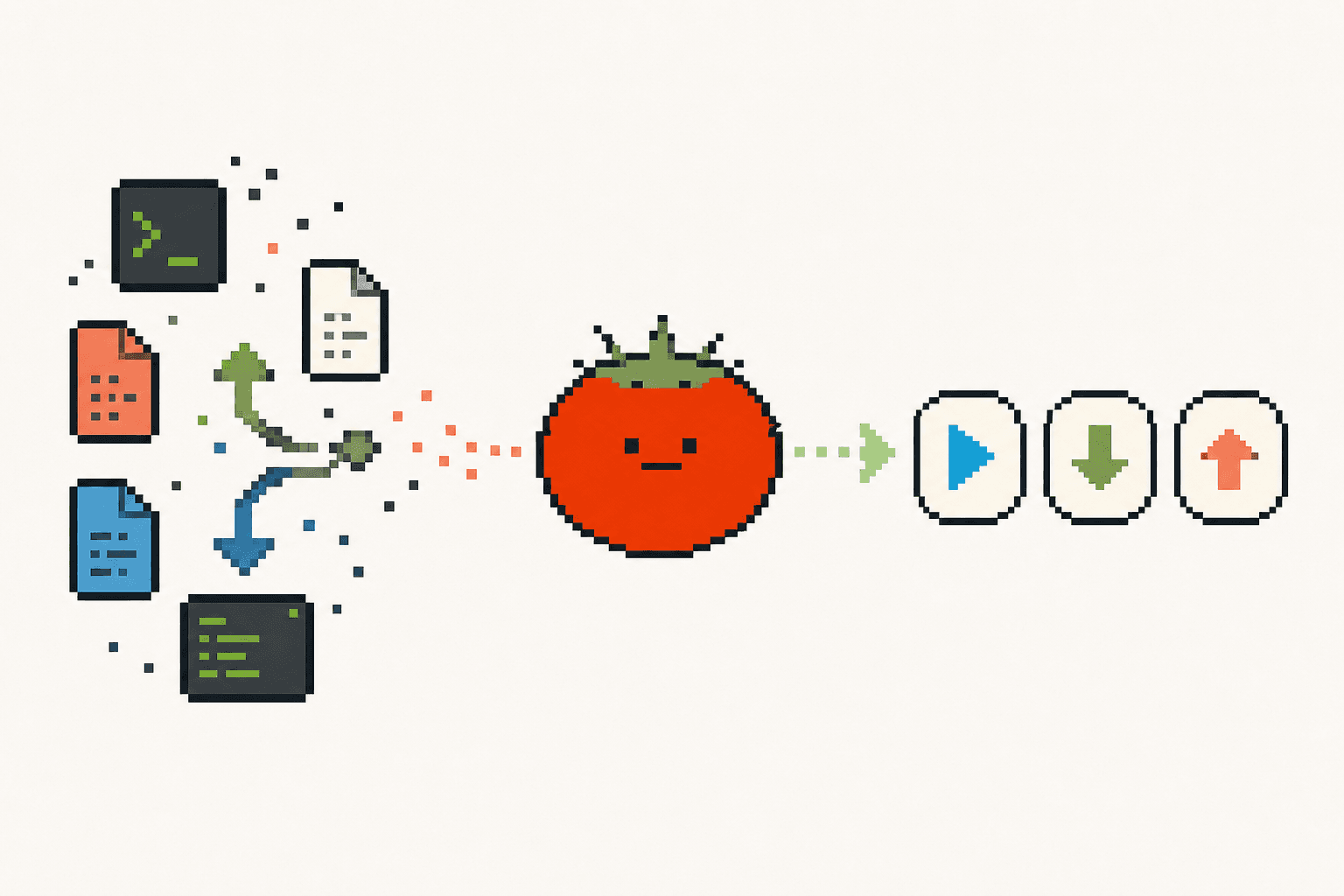
Scattered developer chores becoming start, pull, and push actions through KoKo

What a good Codex desktop assistant should do

Be fast

The entry point should be available from anywhere and jump straight into the configured Codex context without making you find the project, Skill, or prompt again.

Stay controllable

Every prompt, Skill, and parameter behind a button should be visible, editable, and reusable. KoKo is designed to deliver the actions you already approved.

Keep boundaries clear

The Beta focuses on Mac desktop, internal invite access, and fixed workflows. Code, commits, and release actions that need judgment should still keep human confirmation.

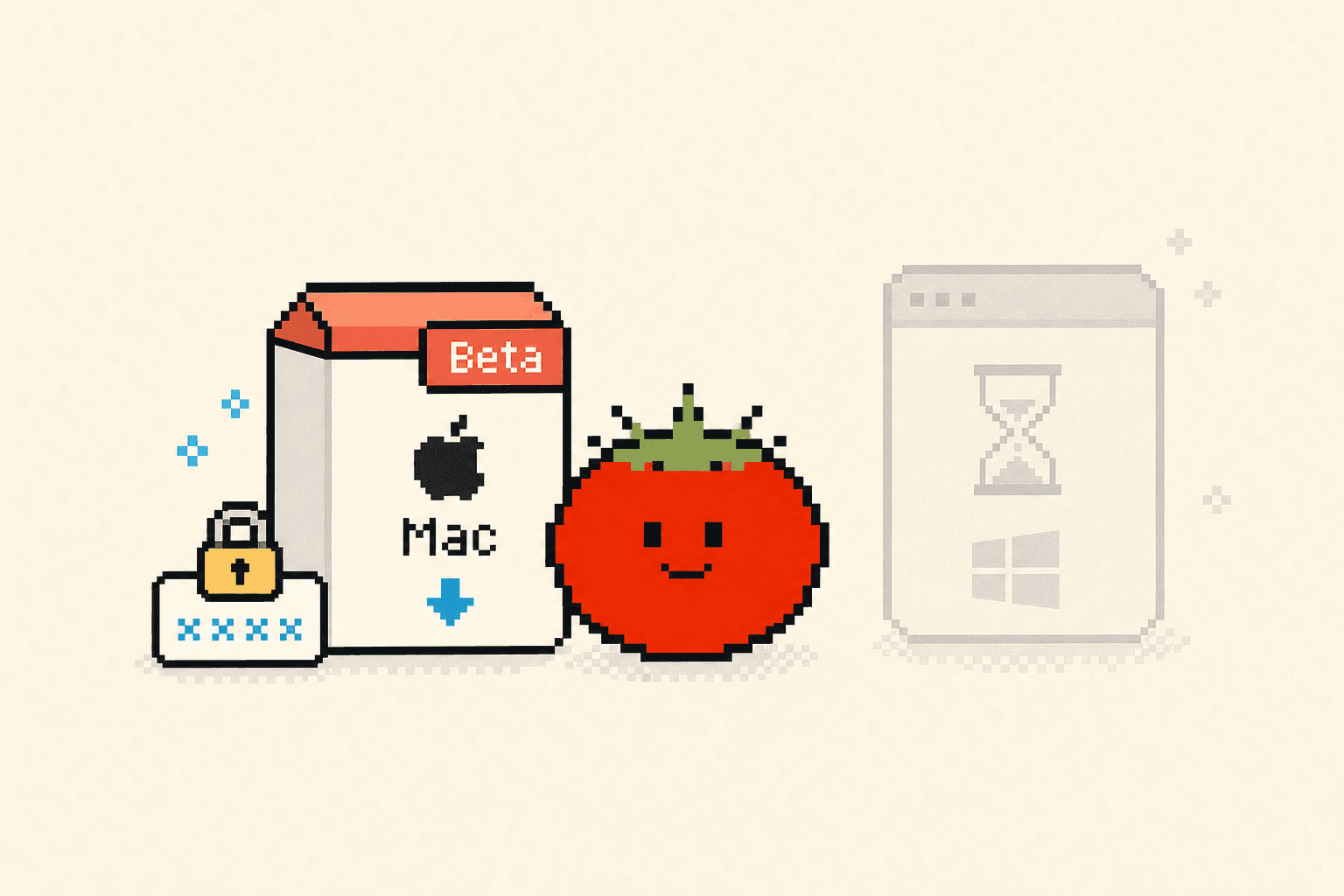
KoKo Mac Beta installer, invite-code lock, and coming-soon Windows entry

Beta download and platform boundaries

The current Mac installer is a Beta build for internal use. Download requires an invite code; the front-end code is 326326. A backend invite or account system can replace it when KoKo opens externally.

The Windows entry is visible on the right but marked coming soon. That sets platform expectations without implying that a Windows installer is already available.

KoKo helps send configured content to Codex, but it does not decide whether code is safe, commits should ship, or generated output is production-ready. Developer buttons should keep necessary checks and human confirmation.

FAQ

How is KoKo different from a normal launcher?

A normal launcher usually opens apps or runs commands. KoKo is built around Codex workflows: it can combine prompts, Skills, project paths, and preset parameters into buttons that send work to a target Codex chat or project.

Why does the KoKo Mac Beta require an invite code?

This build is still in internal Beta, so download access is limited while we collect feedback on installation, floating-window behavior, Codex launch, and button configuration. The current invite code is 326326.

Can KoKo start my code project?

Yes. You can configure a button with the project path, start command, and checks. KoKo sends that action to Codex, while the final result still depends on your local environment, dependencies, and project scripts.

Can I use KoKo for git pull and push workflows?

Yes. You can split pull, checks, commit summaries, push, or PR draft prompts into buttons. Keep branch checks, change summaries, and confirmation steps in the prompt for actions that affect shared code.

When will the Windows version be available?

The Windows version is not open for download yet. The page keeps the entry visible and marked coming soon until installer behavior, floating-window permissions, and Codex launch flow are stable.

Can I configure other Skills as KoKo buttons?

Yes. KoKo is best for frequent, fixed, waitable Skill flows such as SEO briefs, brand assets, document cleanup, launch checks, email drafts, and project retrospectives.

KoKo is still an internal Beta. You can return to the tool list to explore current Tomako tools, or continue with product naming if you are preparing launch content.