Platform-shaped image set
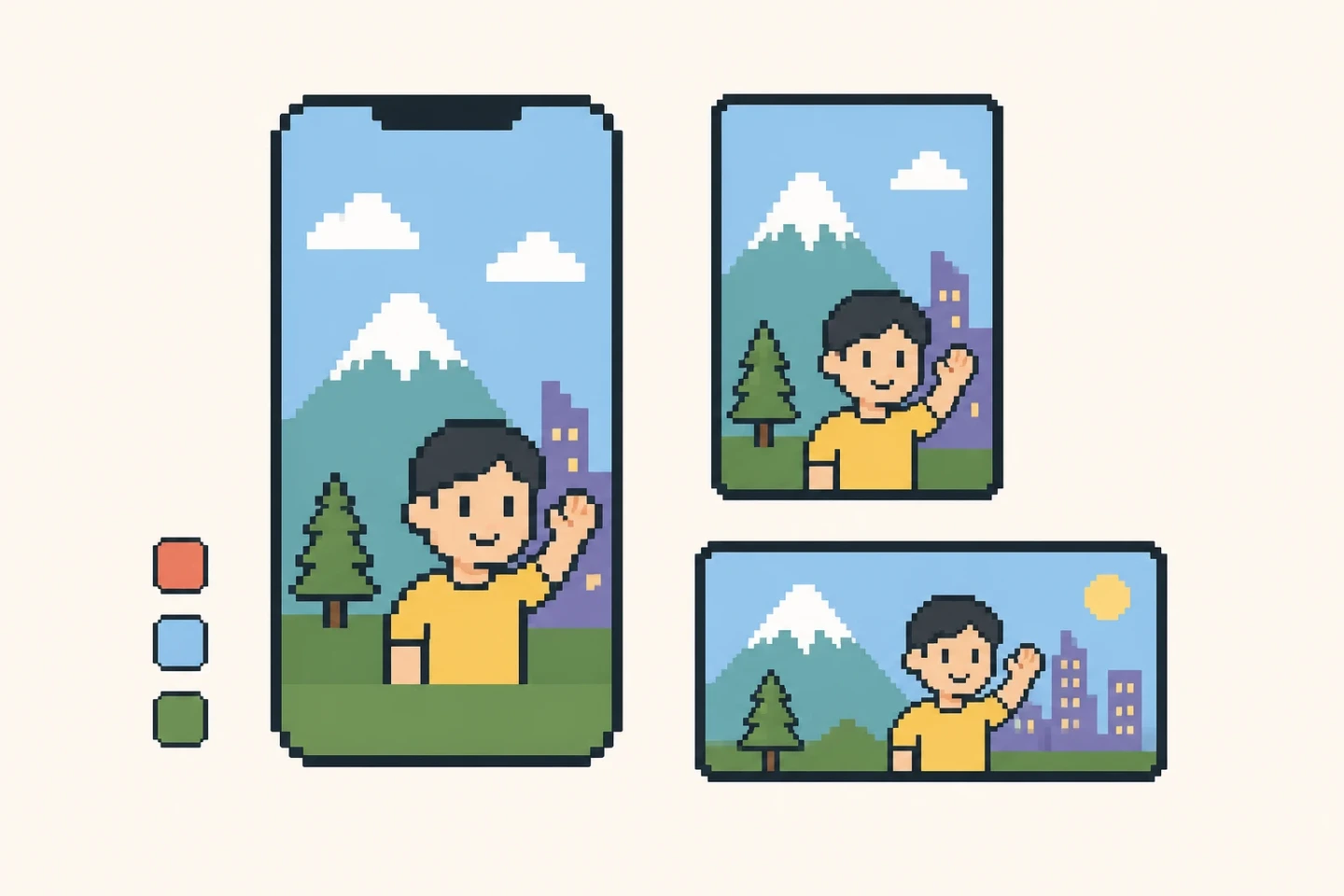
Choose iPhone 6.9-inch (1320 × 2868), iPad 13-inch (2064 × 2752), or Google phone portrait (1080 × 1920). The 1024 × 500 Google feature graphic is a separate one-image preset.
Upload real UI screenshots. An online image generation workflow reads supporting context, plans the complete set, and submits live image tasks.
Choose iPhone 6.9-inch (1320 × 2868), iPad 13-inch (2064 × 2752), or Google phone portrait (1080 × 1920). The 1024 × 500 Google feature graphic is a separate one-image preset.
Select one listing image and download a PNG for team review, store console upload, or design critique.
Download an SVG wrapper that preserves the generated image, dimensions, and prompt metadata for review and design polish.
Clear dimensions: Tomako binds every typed result to the selected platform, preset, dimensions, count, and unique slot before it can render as a valid result.
Fast exploration: Real UI screenshots are enough to produce a first creative set grounded in the actual interface, so teams can filter direction before design polish.
Editable output: Each live image result can be downloaded as PNG, with an SVG wrapper carrying image and prompt metadata for design handoff.
Trustworthy limits: The page and result guidance state that final platform and brand review is still required.
Safer assets: This page states when screenshots are sent to the image task, so teams can remove private or unlicensed content before generation.
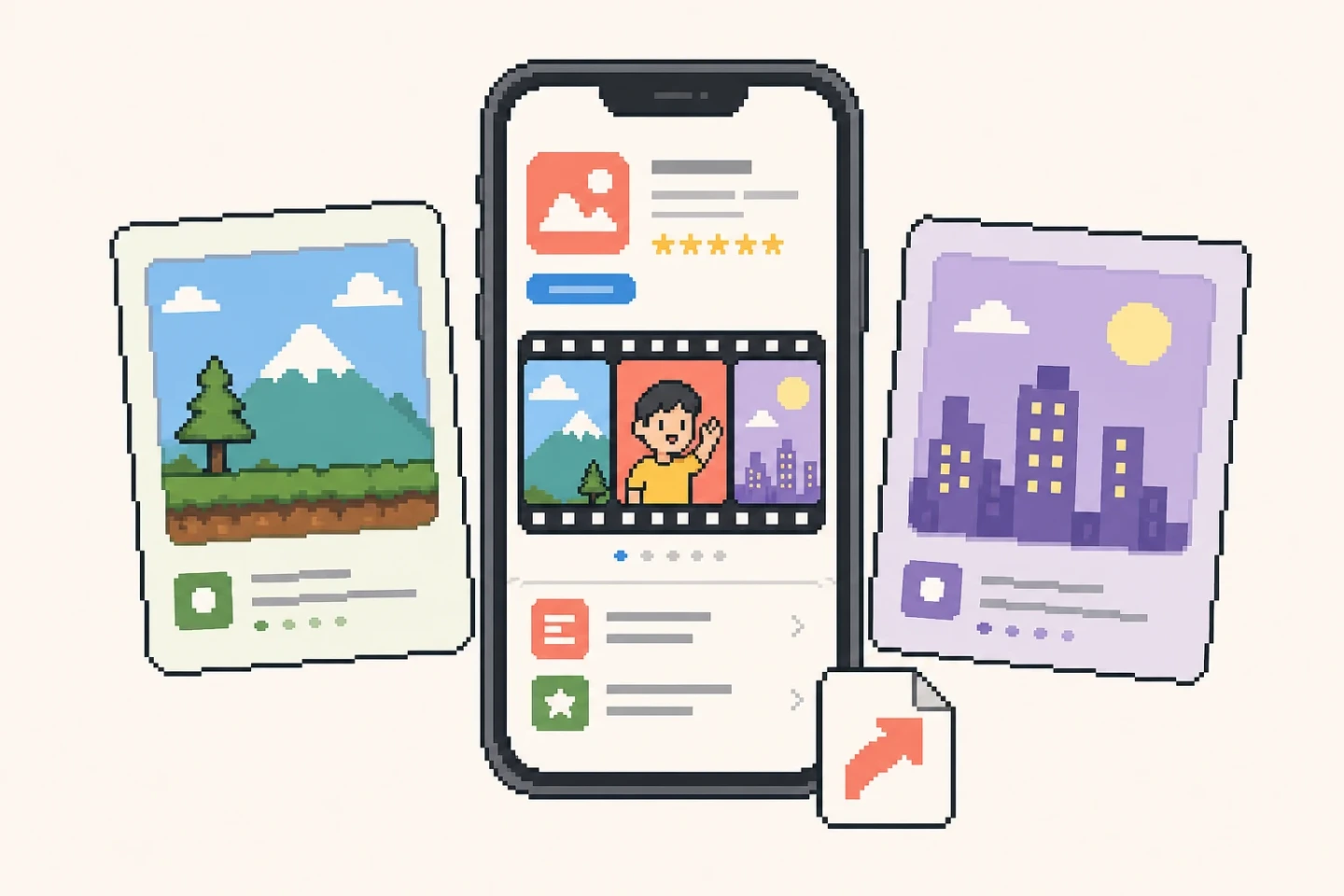
You must upload local UI screenshots. Product URL, App Store or Google Play links, product name, and selling points provide supporting context for title, description, and page-summary clues.
Current presets cover Apple iPhone 6.9-inch portrait at 1320 × 2868, Apple iPad 13-inch portrait at 2064 × 2752, Google Play phone portrait at 1080 × 1920, and a separate 1024 × 500 Google feature graphic.
This version uses an online image generation workflow to submit live image tasks, but it does not connect to App Store Connect or Google Play Console.
If a screenshot includes test accounts, real users, private data, or unauthorized brands, redact it before use.
If no result appears, confirm that a PNG/JPG/WebP screenshot is uploaded and browser file reading is allowed. If you added a product URL, confirm that its public page is reachable.
Before real submission, review the latest platform dimensions, review policies, trademark or copyright permissions, privacy content, copy claims, and readability on target devices.
Use PNG as a direction image or review image. First confirm whether the first screenshot explains the core user benefit clearly.
Hand the SVG wrapper to a designer when the team needs prompt traceability, final product screens, brand fonts, store whitespace, or localized variants.
Do not blindly reuse one image across App Store and Google Play. Portrait screenshots, iPad shots, and feature graphics need separate composition checks.
If a generated image feels crowded, remove small labels, secondary features, and long subheadlines before adding more decoration.
Before uploading to a real store console, check the latest official specs and review guidance for size, content, privacy, trademark, copyright, and exaggerated claims.
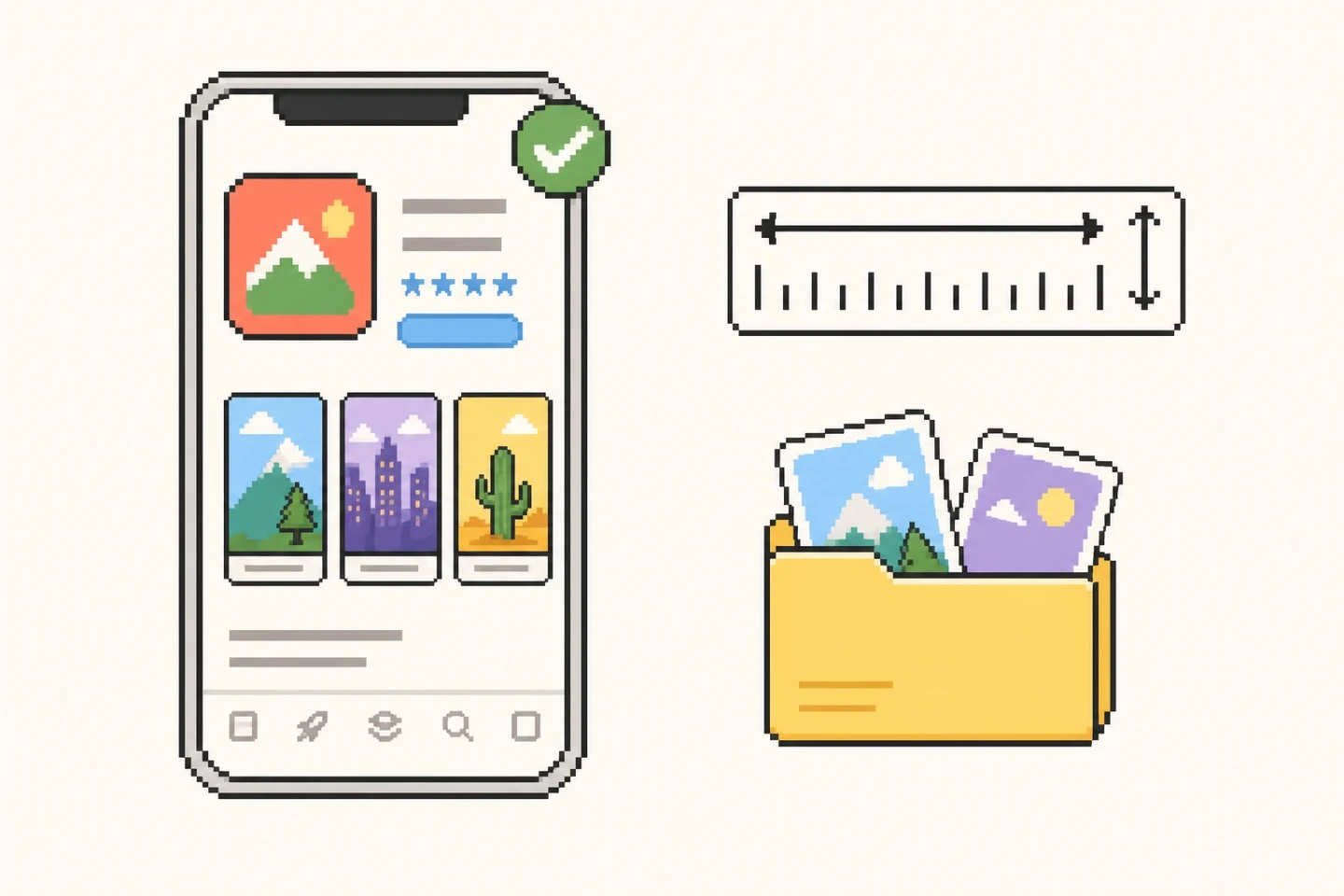
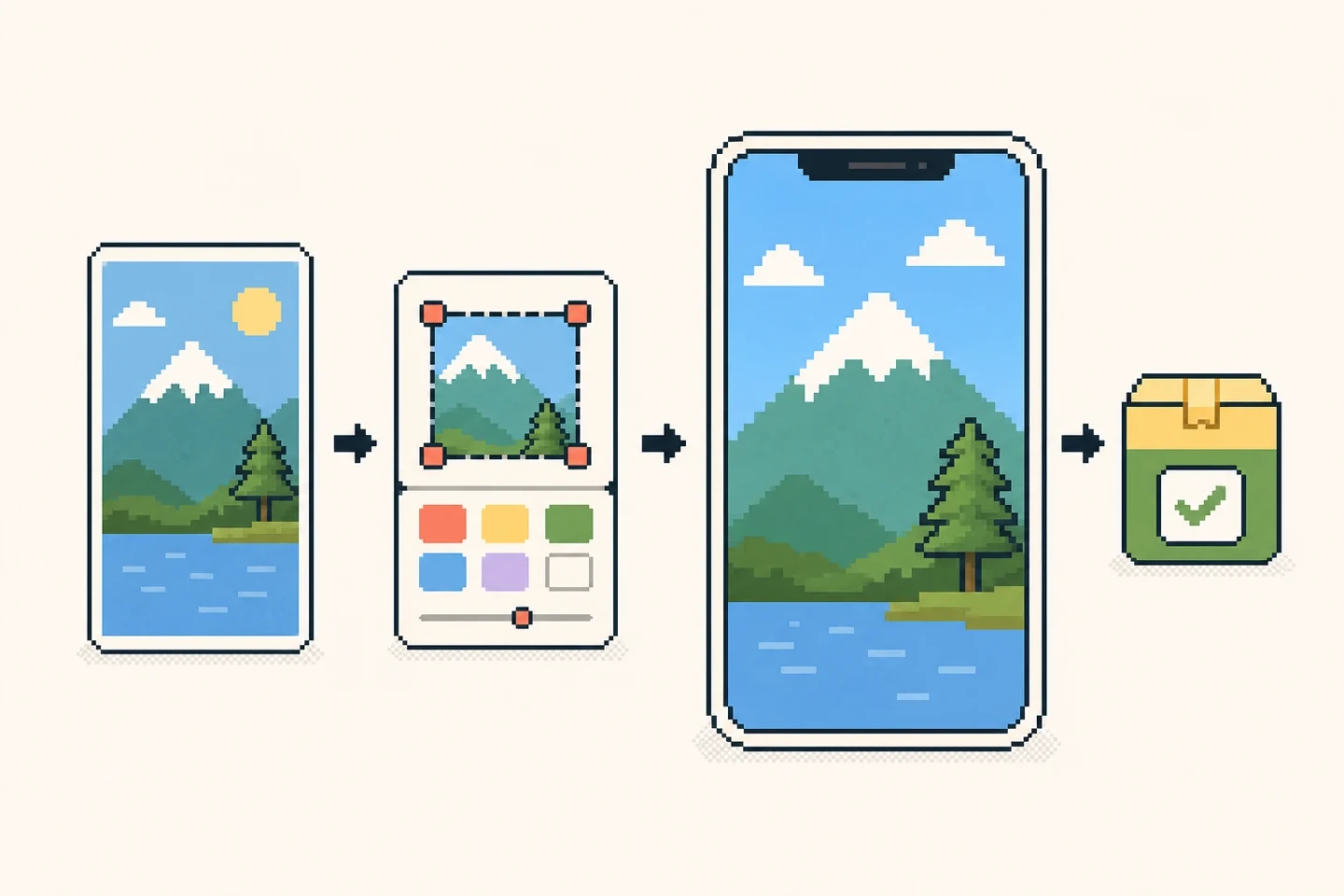
Upload real UI screenshots. An online image generation workflow reads supporting context, plans the complete set, and submits live image tasks.
It fetches public title, description, OG metadata, headings, and a short page summary to infer product benefits and screenshot copy. Logged-in, blocked, or anti-scraping pages may fail.
This is not a browser-only workflow. Uploaded screenshots are transmitted to Tomako's online image task and this tool does not promise immediate deletion or zero retention. Do not upload real user data, unredacted admin screens, customer information, confidential screens, or unauthorized brand assets.
The PNG is normalized to the selected preset for upload preview or team review. Before publishing, decode-check the file and review the latest dimensions, format, content policy, privacy, trademark, and copyright requirements.
The SVG is a handoff wrapper for the generated image. It preserves the image reference, dimensions, and prompt metadata so a designer can review and refine the direction.
No. Upload real UI screenshots first. Product URL or product name can add context, but cannot replace real product screens.
No. It generates visual results and does not connect to App Store Connect, Google Play Console, or live policy APIs. Review official store guidance before submission.